User License & Permissions
Every user needs to have a valid license to work with Pimics. The user license has several types and allows AI capability as an advanced functionality for selected users.
Pimics Users licensing
Pimics is licensed for named users. All users who need access to Pimics must have valid licenses, but not all users in Business Central need a Pimics license. Licenses can be assigned in Catalog Users.
License types
Full user
This license is typically assigned to all users who manage product data in Marketing, Product, Content, etc. departments. A typical company needs 5 to 15 of these licenses.
Read-only user
This license is typically assigned to users who need to consume or verify product data in Pimics. A user with this license cannot change master data. This license can be used for e-commerce, sales, and similar departments.
No license
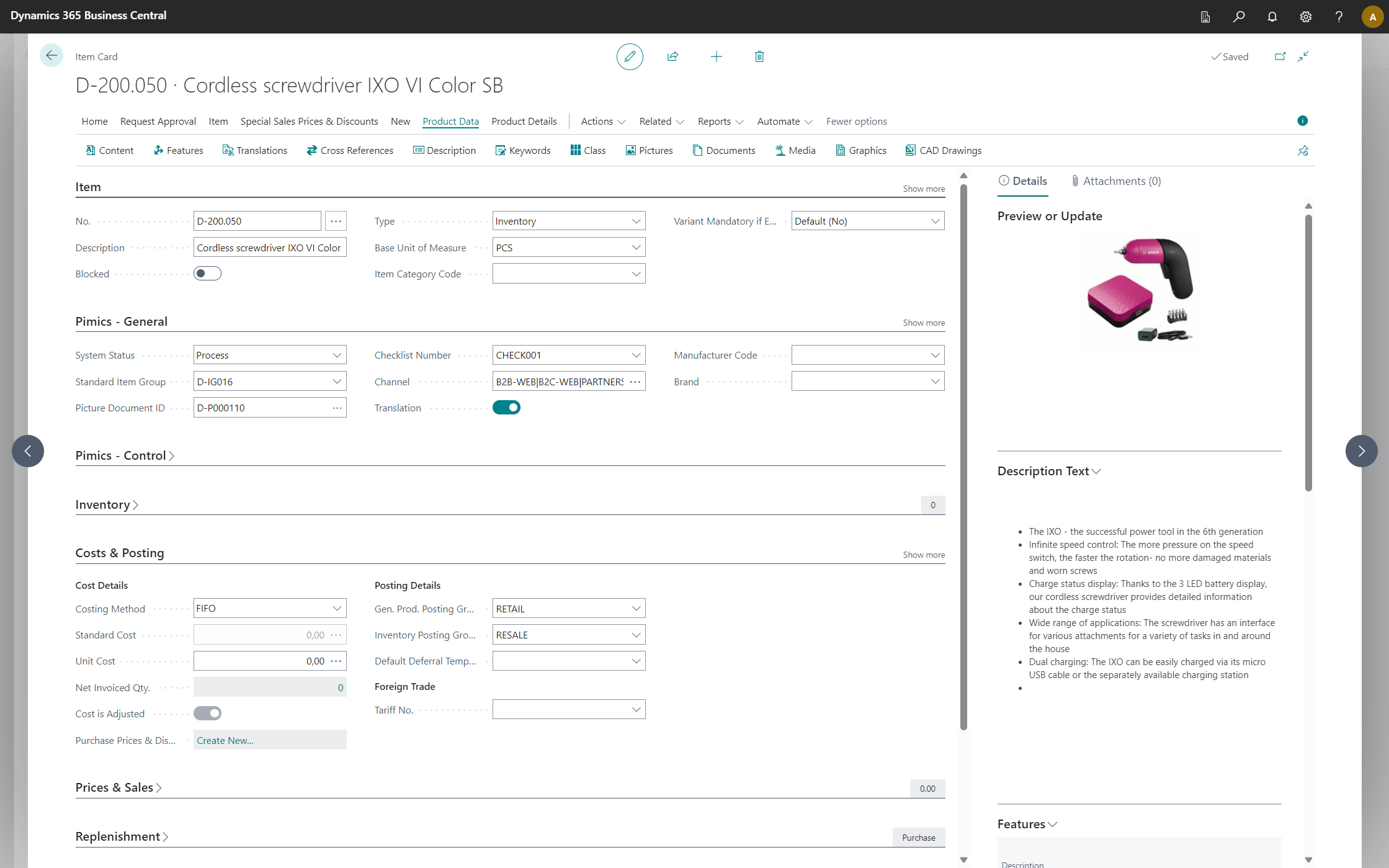
If a user does not have a license for Pimics, they can still consume certain data from Pimics, but they cannot open pages or other UI elements from Pimics. The only exception is the Item, where we allow viewing data on standard Item Card or standard Item List pages without a license.
This view and actions are available for all Business Central users with certain permissions.
Pimics AI Licensing
Pimics AI access is assigned per user in Catalog Users (also called Pimics Users). Pimics AI does not use AppSource plans to decide whether a user can access its features. The AI User field on the Catalog User record controls access.
Assign Pimics AI access
- Select Search (Alt+Q), enter Catalog Users (or Pimics Users), and choose the related link.
- Select the user who needs access to Pimics AI.
- Set AI User to Yes.
- Read the confirmation message about invoicing the additional user from the current date, and select Yes.
- To remove the user's access, set AI User to No. Pimics AI does not provide a read-only fallback for users without this assignment.
HIDDEN
DevOps sources: #38714 - Pimics License and #43876 - AI License
Permissions
Pimics makes use of several permission sets and additional permissions are defined for its extensions.
Important
The minimum permission to assign to any user to be able to use Pimics, is PIMX MINIMAL. This permission is automatically added to D365 BASIC and D365 BUS FULL ACCESS during installation. But if there is a user without any of these D365 permissions, the PIMX MINIMAL needs to be assigned to that user if they need to work with Pimics.
Available permission sets
| Code | Description | When to use |
|---|---|---|
| PIMX MINIMAL | Pimics minimal/base access | Minimum Pimics permission required for any user who needs to work with Pimics. It is automatically included in D365 BASIC and D365 BUS FULL ACCESS during installation. |
| PIMX USER | Pimics operational user | Assign to users who create and maintain Pimics data (classification, features, content, publication data, and daily Pimics operations). |
| PIMX SUPER USER | Pimics administrator/power user | Assign to key users and admins who need full control, including setup changes and delete permissions on Pimics master data. |
| PIMX API PUBLICATION | Pimics API publication access | Assign to integration/API users that need read access to publication structures and related publication setup data. |
| PIMICS – VENDOR CATA | Permission for Pimics - Vendor Catalog extension | Everybody who will work with Vendor Catalog needs to have this permission set. It contains user rights for Pimics - Vendor Catalog |
| PIMICS ON-PREMISE | Permission for Pimics - on-premise extension | If Pimics is installed on an on-premise version of Business Central, this permission needs to be assigned to all Pimics users. It contains user rights for working with local files and other functions for on-premise installations. |
Obsolete permission sets
| Code | State | Description | Replaced by |
|---|---|---|---|
| PIMICS | Obsolete since v7.0 | Pimics User | PIMX USER |
| PIMX ADMIN | Obsolete since v8.0 | Pimics Super-User/Admin | PIMX SUPER USER |
| PIMICS – VENDOR CATA | Obsolete since v8.0 | Pimics - Vendor Catalog User | PIMX VC USER is included in PIMX USER and PIMX SUPER USER |
| BMECAT FOR PIMICS | Obsolete since v8.0 | BMECat User | PIMX BMECAT is included in PIMX USER and PIMX SUPER USER |
Minimal Business Central native permissions for PIM Users
| Code | Description | When to use |
|---|---|---|
| D365 BASIC | BC Basic | It is required. This includes the base permission to be able to log in and see items and other data from BC |
| D365 ITEM, EDIT | Edit items | Necessary for most PIM users, because without this they cannot create/modify items |
Define users
- Search for Catalog Users (or Pimics Users) and open the relevant link
- Select action Create All Users. This will create a line for each user in BC
- For each user specify one of the following Pimics licenses in the field License Type:
- To give the user access to Pimics AI, follow Assign Pimics AI access.
- If there are not enough Pimics licenses for users you will get this message: 'There are only # users allowed by the license. Do you want to generate a new license?'. In case you need more users than currently allowed by your license, you can always order more licenses from Allium.
- You can find your current number of user licenses in Catalog Setup, in group Database upon drilling down on field License Valid To
Recommended configuration
| Role | Description | Permission sets | License |
|---|---|---|---|
| BC Users | Users who shouldn't work with Pimics | D365 BASIC or PIMX MINIMAL | None |
| Read-only PIM users | Users who should see data in Pimics | From the permission point of view, they need to have the same permissions as PIM Users | Limited |
| PIM users | Users or team members who will work with Pimics | PIMX USER, PIMICS - VENDOR CATA (if available), PIMICS ON-PREMISE (if available) | Full |
| Admins or key-users | Users allowed to change the configuration or delete master data | PIMX SUPER USER, PIMICS - VENDOR CATA (if available), PIMICS ON-PREMISE (if available) | Full |
| API / Integration users | External systems or services that consume data via the Pimics Publication API | PIMX API PUBLICATION (fallback: PIMX USER only if write access is required) | None |
Renew license
- Choose the Search icon (or use Alt + Q), enter Pimics Info, then choose the related link.
- See license information in License group on the page.
- Select New License from actions
Note
Allow HttpClient Requests needs to be set to Yes for Pimics PIM extension. Otherwise you will get an error The license service call failed with an internal error.
- You can get a question like License is valid up to DATE. Do you want to update it?. Answer Yes
- If there is no message.
- the license has been updated. You can see new info in group License.
- If you see an error.
- Please find the field License Id and use the lookup on the field to get full information about the license.
- Copy it and send it, together with the error, to your partner or to helpdesk@pimics.com.
Automatically renew license
To avoid a situation where you need to request a new license periodically, make sure that the Job Queue for codeunit 70113943 "PIMX Pull Notification Job" is Ready. If not, follow the instructions in Admin Job Queues Tasks to Set Status to Ready or create it.
Known issues
TODO
Finish the table
| Type | Message | Reason | Solution |
|---|---|---|---|
| Message | Pimics App Area should be part of Essential or Premium in order for the extension to work. | Application Area is disabled for Pimics. | Solutions: Enabled Application Area Pimics Base in Catalog Setup. When you don't have a Pimics license for the company. Open Catalog Setup and run Actions -> Disable Pimics. |
| Notification | XX | Pimics license will be soon expired | Select XX in the notification. If you have still an issue write to helpdesk@pimics.com. We need to get information about the license from page Pimics Info. |
Required BC licenses
Every user who works with Pimics must also have a Business Central license that entitles them to use the required Business Central and Pimics objects. The Pimics license and permission sets do not extend the rights provided by the Business Central license.
| BC License | When to use | Limitations |
|---|---|---|
| Essentials or Premium | Use for users who work with Pimics. Essentials is sufficient for Pimics; choose Premium only if the user also needs Business Central Manufacturing or Service Management functionality. | Both licenses provide the same Pimics functionality. The user still needs the appropriate Pimics license and permission sets. |
| Team Member | Use only for users whose Business Central work fits the limited Team Member rights and who need limited interaction with Pimics. Confirm the required Pimics pages and actions with your partner before assigning this license. | A Team Member can fully use pages that belong only to Pimics, such as classification or publication data. However, for standard Business Central data that Pimics adds information to, such as Item, a Team Member can only view the data, not create or change it, no matter which Pimics permission set is assigned. |
Microsoft 365 and Device licenses are not suitable for Pimics users. They are not meant for people who regularly work in the Business Central user interface.