Refreshing the publication data
Data in publication can be refreshed in two different ways.
| Method | Description |
|---|---|
| Update Data | It is faster, but it only updates the data in publication. If there is anything new or should be deleted, Update does not touch it. |
| Reorganize Data | It is the preferred way because only reorganize creates and deletes data based on the current state of master data. |
Reorganize Data
Data can be reorganized for the whole publication, selected lines or only for selected items.
Manual reorganization of publications
The process of refreshing publication can be started manually from the Publications list, where one or more publications can be selected, or from the Publication card.
Choose the Search icon (or use Alt + Q), enter Publications, then choose the related link.
Select a publication and open Publication Structure (under group Data)
On the Edit Publication Tree you see the current data in publication, you have two options:
Option 1: Reorganize the whole publication by selecting Reorganize Publication.
3.1. Select Reorganize Publication
3.2. By selecting Yes confirm that you want to reorganize the publication
3.3. You see the process in dialog Working on it...
3.4. When the process finishes successfully you see the message Processing has ended.
Option 2: Select a line and reorganize the line (including all sublines) by selecting Reorganize Publication Line
3.1. By expanding and collapsing lines select a single line
3.2. Select Reorganize Publication Line
3.3. You see the process in dialog Working on it...
3.4. When the dialog is closed, the process has finished successfully
This will reorganize the publication and data based on the structure defined in the Master data.
Reorganize publications from items
When changes to channel, system status, or other criteria were made in the PIM Item card, there is an option to reorganize this item's line in publications.
You can reorganize publications for an Item selected in the list:

or from the PIM Item card:

- Either select a PIM Item in the list or open the item's card.
- Reorganize publication lines.
- Select one or more Publications.
Automated reorganization of publications
- Access the job queue entries list by pressing Alt+Q and then searching for 'job queue entries' and selecting the appropriate link.
- Press +New to create a new job and set Report in the Object Type to Run field.
- The Object ID to Run field should be set to 70113737.
- The report source is the Publication Header table, so in the report's request page, all standard BC filtering can be applied - any field or combination of fields.
For example, all publications having Export Channel = SIMPLE API:
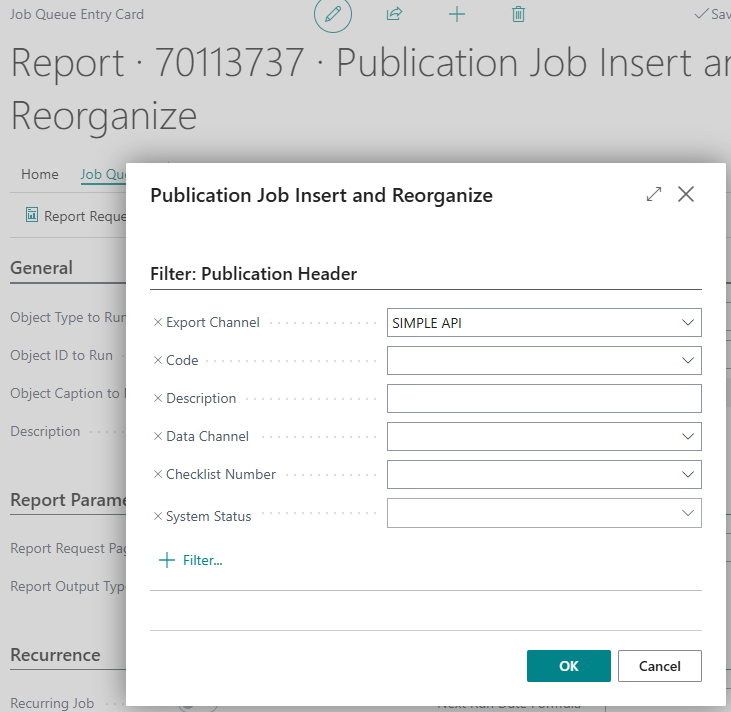
or/and publications with Code = PUB000001|PUB000002
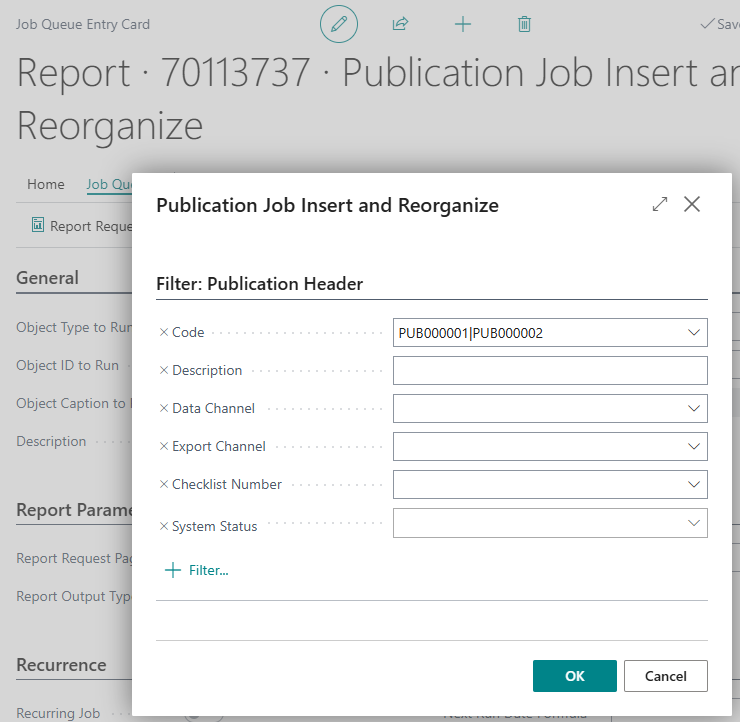
The process will:
- Find all master data change log lines with the field "Publication State" not having the value "Done". To avoid duplication of processed lines having the same master data type and master data number, a unique list of types and numbers is created.
- For every unique line, a parent allocation is searched in the allocation.
- For each publication set in the report filter(s), a partial reorganization of parent publication lines found is performed. Partial reorganization means that after a parent line is updated, not all child lines will be reorganized, but only the lines having type and number from the unique list are inserted/updated/deleted - depending on the publication setup.
- Finally, master data change log lines found in the first step are marked as "Done".
Update Data
How to refresh data in a publication
For 'static' publications like printed catalogs or promotional action brochures/PDFs, it makes sense to first refresh the publication data before exporting it to your sales channel. This will bring in the latest feature values, descriptions, or item prices as they are at the time of the data export.
Here is how you can perform this action:
- Using Alt+Q, search for publications and open the relevant link, or access Publication management > Publications. Open a publication card.
- Access Data > Update Publication as shown below:

- In the process of updating the publication data, Pimics will try to get the latest version for every piece of product data included in the publication. During this process, it may come across item data that no longer exists because it has been deleted by user action in managing product data. This is what we call a 'bad reference'. This is why you will then get the three options pictured below:

- After successfully running the data update inside the current publication, Pimics will display a message that processing has ended. Your publication is now guaranteed to contain the most recent product data, which you can now export to your sales channel.
Important Fields
Publications contain several fields that help track changes that happen in data.
| Field Caption | Number | Purpose |
|---|---|---|
| Data Updated On | 3104 | Contains the timestamp of the last update made in the Data field |
| Data Changed On | 99109 | Indicates when the underlying master data (e.g., item, feature, category) linked to the publication line was last changed. It helps identify if external data changes triggered a publication update. |
| Updated On | 7102 | Used to store the timestamp of the last modification to the publication line. It helps external sources identify lines that need to be synchronized. |
| Transaction GUID | 3000 | When we start a reorganization, Pimics generates a unique identification. It is used to group and trace changes made during a single job or batch run. |
How it works
Case 1:
- I have an item and a feature on the item.
- The item was changed yesterday, the feature today. I run reorganize.
- The item will get Data Changed On = yesterday, Updated On = now
- The feature will get Data Changed On = today, Updated On = now
- Both lines will have the same transaction GUID
Case 2:
- I have an item and a feature on the item.
- The feature was changed yesterday. The item was changed in the past and since then it has been reorganized. I run reorganize.
- The item keeps the current Data Changed On and Updated On
- The feature will get Data Changed On = yesterday, Updated On = now
- Both lines will have the same transaction GUID