Upload files
Assign files directly to a single item or category
- Using Alt+Q, search for PIM Items and open the relevant link, or access Product Information > PIM Items. Open a PIM item card.
- Go to the Picture FastTab.
- Click the Drop files here area to upload pictures from your device, or drag and drop them directly:
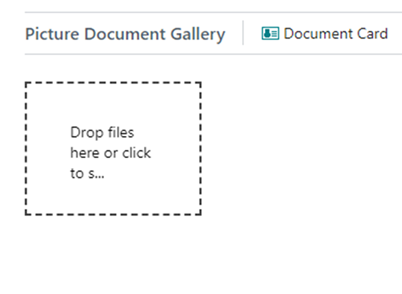
- In the file explorer that opens, select one or more pictures with the JPG or PNG extension. The system then shows a progress bar while the files are uploaded.
Set or change the main picture on the PIM item card
- Using Alt+Q, search for PIM Items and open the relevant link, or access Product Information > PIM Items. Open a PIM item card.
- Go to the Picture FastTab.
- Select a picture and click Set As Main Picture as shown below:
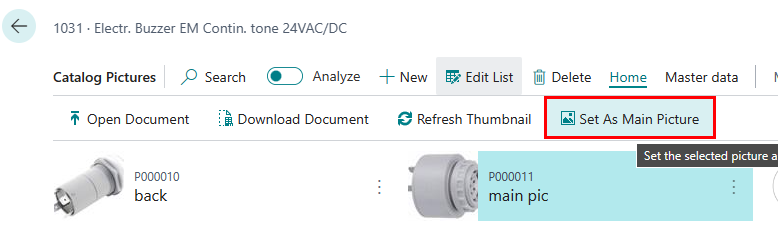
- The thumbnail of the main picture then appears in the FactBox on the right side of the item card.
Upload multiple files to Pimics
For details on uploading files in bulk to Pimics, see Upload more files to Pimics.