Sana Commerce
Pimics offers an integration with Sana Commerce. Using this integration you can manage product data in Pimics and synchronize these rich data with Sana.
Note
The Sana versions currently supported are Sana Commerce Cloud 10.0 and above
How it works
Every request to the ERP is extended by a call to Pimics to extend the ERP data with PIM data.
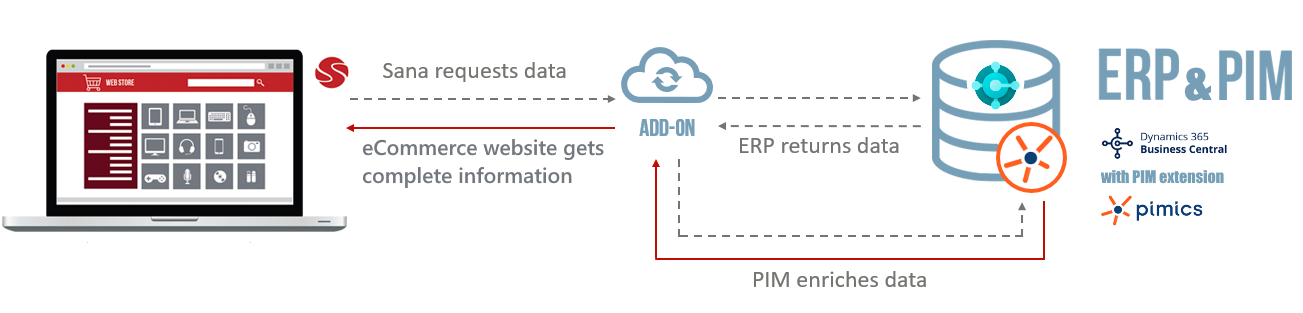
To make this integration possible, you need to have the Pimics add-on in Sana Commerce, and the Pimics extension in your Business Central.
Product Update Extension (Required by Sana)
Why It Is Needed
Using only the ConnectionExtension interceptor does not cover all synchronization scenarios. To correctly handle updates of PIM-modified products in Sana, you need to implement ProductUpdateExtension.
Without ProductUpdateExtension:
- Sana cannot track changes in Pimics.
- Products updated in PIM may not appear correctly in the Sana store.
How It Works
Sana calls:
GetUpdatedProductsCount→ Returns the number of changed products.GetUpdatedProductIds→ Returns the list of changed product IDs.
Pimics then responds with product data through the standard GetProducts call.
Reference:
Sana Developer Guide – Create Product Update Extension
Benefits
The ERP contains only transaction data and data required for selling and processing items.
Pimics allows the ERP to handle rich product data that will be used to present products on Sana Commerce. With Pimics you will manage all product data in your Business Central, and you won't upload pictures, change texts, etc. in Sana anymore. Pimics brings you a tool to do all these tasks effectively, and Sana becomes just one of many possible channels for your product data.
Start with Pimics and Sana Commerce
If you use Sana Commerce Cloud and Dynamics 365 Business Central, the easiest way to start is download Pimics from AppSource. After that you will be able to configure the Pimics extension in Business Central using Assisted Setup.
If you already have Pimics and you're interested in a powerful integrated e-commerce solution, take a look at Sana Commerce. Or ask us at info@pimics.com to get a demo of Sana Commerce.
Note
After all components are in place (Business Central, Pimics and Sana Commerce), you should follow these instructions to setup the integration
Sana Commerce and data from Pimics
Pimics synchronizes rich product data to Sana Commerce through publications. The following sections explain which Pimics data is synchronized and how it appears in your Sana storefront.
Synchronization Workflow and Filters
Sana uses a three-step process:
- Count changes →
GetUpdatedProductsCount - List IDs →
GetUpdatedProductIds - Get product data →
GetProductsfor those IDs
Filter Logic
You can configure how Pimics handles filters:
- Ignore filters – Retrieve all data from PIM to avoid omissions.
- Ignore Pimics element – Apply only BC filters.
- Use both – Combine Pimics and BC filters.
Recommended setting: Ignore filters and include Pimics element.
Performance Optimization
Using HttpClientFactory
Replace static HttpClient usage with HttpClientFactory:
- Prevents socket exhaustion.
- Follows MS best practices for scalability.
- Reference: HttpClientFactory guidelines
Database Isolation Level
To reduce locking issues in high-load scenarios:
SET TRANSACTION ISOLATION LEVEL READ COMMITTED;
Or use NOLOCK hints where appropriate to allow non-blocking reads.
Categories and items
Categories organize your product catalog hierarchy in both Pimics and Sana. When you publish a category structure, Pimics exports the complete hierarchy (chapters, categories, and subcategories) to Sana Commerce where they appear as collections or menu structures on your storefront.
Items are the individual products. Pimics can export items either:
- Individually (using the Single Item publication structure type, required for Sana)
- As part of hierarchical structures where items are placed under categories
During publication, only items marked as Visible in Webshop are synchronized to Sana.
Features
Features are product attributes that describe product properties (size, color, material, etc.) and are used in Sana Commerce for two purposes:
Filters configured as filter attributes become faceted search filters on your Sana storefront. Customers can filter products by these attributes (e.g., "Color: Red", "Size: Large").
Specifications - Features configured as specification attributes appear as product specifications on the product detail page in Sana, showing additional product information to customers.
Keywords
Keywords in Pimics are search terms associated with products. When synchronized to Sana Commerce, keywords improve product discoverability by making products appear in search results for those terms, even if the terms don't appear in the product name or description.
To synchronize keywords to Sana, configure the keyword fields in Setup - ERP integration - Keywords fields.
Pictures
Product images stored in Pimics are synchronized to Sana Commerce as product pictures.
Note
Currently, Sana can sync with Pimics pictures located in SharePoint only. Configure the SharePoint location in the Pimics add-on in Sana, then ensure your product images are stored in that configured SharePoint folder and linked in Pimics.
Documents
Product documents (manuals, datasheets, certificates, etc.) stored in Pimics are synchronized to Sana Commerce as downloadable attachments on the product detail page.
Note
Currently, Sana can sync with Pimics documents located in SharePoint only. Configure the SharePoint location in the Pimics add-on in Sana, then store documents in that configured SharePoint folder and link them to products in Pimics.
Texts
Descriptions are product text content that appears on the product detail page in Sana. If a product has multiple descriptions in Pimics, Pimics automatically merges them into a single description for Sana.
Main Language Setting
Sana Main Language is a publication setting that determines which language from your Pimics catalog translations should be used as the default (primary) language in Sana. This is particularly important for multi-language stores.
How Main Language Works
- Main Language Field: Available on the Publication Header when using a Sana export channel
- Default Behavior: If no main language is specified, the publication uses your catalog's default language
- Other Languages: All other configured languages in the publication are included as translations with their respective language codes
Example Configuration
For a store with English business central and German as the main Sana storefront:
- Set Sana Main Language to
DEU(German) - Configure Publication Languages to include
DEU|CSY|FRA(German, Czech, French) - Pimics will generate Sana XML with:
<field name="Title" value="Artikelname">(German - main language, no suffix)<field name="Title_1033" value="Item name">(English translation)<field name="Title_1029" value="Název článku">(Czech translation)<field name="Title_1036" value="Nom de l'article">(French translation)
Note
If you specify Sana Main Language, it must be included in your publication's configured languages (Publication Language Code field). If not, you'll receive a validation error.
Translations
All product data can be translated in Pimics and the translations are synchronized with Sana Commerce. You need to have the language(s) enabled in your Sana Commerce system.
Translation Workflow:
- Maintain product data translations in Pimics for each language
- Configure Language Code on the Publication with all languages you want to publish
- Optionally set Sana Main Language to designate the primary language for your Sana storefront
- When the publication data is prepared for Sana, Pimics generates XML with the selected main language as the default, or uses the catalog default language if Sana Main Language is left blank
- Sana Commerce receives all language versions and presents them according to the storefront's language settings
The translation workflow respects your publication's main language setting, ensuring consistent product presentation across your Sana storefront in all configured languages.
Cross-References (Accessories, parts, etc.)
Pimics cross-references (also called related products) create relationships between items or categories to show complementary, substitute, or related products. Pimics cross-references are more powerful than Sana's standard related products feature because they can reference both items and categories, with configurable relationship types and expansion rules.
Key Features:
- Define relationships at the category level (referenced category expands to its items)
- Define relationships at the item level (reference specific products)
- Assign relationship types to describe the nature of the connection (e.g., "Accessory", "Related Product", "Replacement Part")
- Control expansion behavior to show either the category or all items within the category
How Cross-References are Synced
When you set up cross-references in Pimics, they are automatically included in the Sana publication and synchronized as <RelatedProduct> elements. Each cross-reference becomes a related product entry with:
- Item ID: The referenced item identifier
- Type: The cross-reference type code (defined in the Pimics cross-reference type table)
- Description: The human-readable name of the cross-reference type (e.g., "Accessory", "Related Product")
- Sort Order: The line order for organizing related products
XML Export Example
<RelatedProduct>
    <ItemId>ITEM-123</ItemId>
    <Type>Accessory</Type>
    <SortOrder>10</SortOrder>
</RelatedProduct>
Mapping:
0= Mix & Match1= Related Products- Custom codes supported in Pimics; mapping in Sana may require additional configuration.
Cross-Reference Types with Descriptions and Translations
Pimics cross-references support type codes with descriptions and translations. This allows you to:
- Define meaningful names for relationship types (e.g., "Accessory", "Replacement Part", "Related Product")
- Translate cross-reference type names into multiple languages
- Map these types to Sana's native relation types or display them as custom relation types
Cross-Reference Types and Sana Relation Types
Sana natively supports two standard relation types, and Pimics cross-reference type codes map directly to these:
- Type 0: 'Mix & Match' products (can be combined together)
- Type 1: Related products or accessories
- Custom types - Any additional relationship types you define in Pimics
Your Pimics cross-reference type codes map directly to these Sana types. For example:
- Cross-reference type code
0maps to Sana relation type 'mix & match' - Cross-reference type code
1maps to Sana relation type 'related/accessories'
Custom Cross-Reference Types:
For cross-reference types beyond 0 and 1, Pimics exports the type code, description, and translations. How these custom types are shown in Sana depends on your Sana-side implementation. Each custom type needs to be:
- Defined in Pimics with a unique code and description
- Handled in Sana Commerce according to your storefront implementation
- Optionally translated for multilingual storefronts
Category-Based vs. Item-Level References with Expansion
Pimics allows you to define cross-references at either category or item level, giving you flexible control over how related products are synchronized to Sana:
Category-Level References:
TODO
Verfiy this section
- Reference entire product categories instead of individual items
- Use the Expanding Type field to control whether the category is expanded to show all contained items
- When Expanding Type = Expand: Pimics automatically expands the category to all items within it during publication so Sana can receive item-based related products
- When Expanding Type is not set: Pimics keeps the category reference in the publication data; standard Sana related products may not use it without additional Sana-side implementation
Item-Level References:
- Reference specific individual products directly
- Does not require expansion
Use Cases:
- Expand categories for accessory bundles: Define a category "Cable Accessories" as an accessory to "Monitors" and expand it to show all cables, adapters, and connectors as separate related products
- Mixed approach: Use expanded categories (for automatic inclusion of new items) together with specific item references (for hand-picked recommendations)
TODO
Max: Does the merge function in our Sana addon actually replace the
Configuration Considerations
!NOTE Cross-references defined in the SC - Related Items table (from Sana's BC extension) are replaced by Pimics publication cross-references. If you previously used SC - Related Items, delete those entries to avoid duplication in your Sana store.
!NOTE If item allocation changes inside categories that are used in cross-references, first reorganize or update the publication in Pimics, and then run the relevant import or update process in Sana again.
Create a Publication for Sana
Publishing your product data to Sana Commerce starts with creating a publication in Pimics. This publication serves as the single source of truth for all product information that appears in your online store. By following this process, you ensure that your Sana Commerce store displays accurate, up-to-date product data directly from Pimics.
PRECONDITIONS
- Pimics extension is installed in Business Central
- Sana Commerce add-on is configured in your Sana Commerce environment
- Web service connection between Business Central and Sana Commerce is established (see Configuration of Sana Commerce Add-on)
- Items in Pimics are marked as Visible in Webshop
- Publication Groups are configured for your items, categories, and related assets (see Manage Publications)
Create or Verify the Sana Commerce Channel
A Publication Export Channel defines the configuration for exporting data to a specific system like Sana Commerce. Before creating a publication, verify that a Sana Commerce channel exists.
- Choose the Search icon and enter Publication Channels (Publication Management/Publication Channels), then open the related link.
- Look for an existing channel with Publication Type = Sana Commerce. If one exists, skip to Create a New Publication for Sana.
- If no Sana Commerce channel exists, click New to create one.
- Fill in the following fields:
- Code - Enter a unique code for this channel (for example, SANA)
- Description - Enter a meaningful description (for example, Sana Commerce)
- Publication Type - Select Sana Commerce from the dropdown
Note
The Publication Type field determines which data format and export rules will be applied. For Sana Commerce, this automatically configures support for product categories, features, images, documents, cross-references, and multilingual translations.
- In the Configuration section:
- Deleting Type - Choose how deleted products are handled:
- Hard Delete - Immediately removes deleted products from Sana (recommended for Sana Commerce)
- Track Deleted Lines - Leave blank
- Deleting Type - Choose how deleted products are handled:
- Click Save to create the channel.
Important
Once created, this channel can be selected in multiple publications. You typically need only one Sana Commerce channel unless you manage separate Sana stores for different regions or brands.
Create a New Publication for Sana
To begin publishing products to Sana Commerce:
- Choose the Search icon and enter Publications (Publication Management/Publications), then open the related link.
- Click New to create a new publication.
- Press Enter to get the unique Code from the number series.
- Fill in the Description with a meaningful name for your Sana publication (for example, Sana Main Store or Sana DE Catalog).
- Fill in the External Code the identification of the Sana Commerce's store. Typically SANASTORE, you can find it in Webshops field Id.
- Define Publication Groups on Publication Card as other publications
Note
Publication Groups are required for Sana publications. They determine which items, categories, and related data are included, and they should be configured before you start building the publication structure.
Configure the Publication Header
Once the publication is created, configure the Sana-specific settings. For general publication header configuration such as Group System Number, Unit Group System, and contact information, see Create a New Publication.
Sana-Specific Configuration
- In the General FastTab:
- Channel - Select the Sana Commerce channel you created above
- Language Code - Enter the language codes you want to publish (for example, ENG|DEU|FRA for English, German, and French)
- Sana Main Language - Optional. Select the primary language for your Sana storefront if you want it to differ from the catalog's default language
Note
If you specify Sana Main Language, it must be included in your Language Code field. If you leave Sana Main Language blank, Pimics uses the catalog's default language.
- Switch to the Control FastTab.
- Publication Structure Type - Set to Single Item
Note
Sana Commerce requires the Single Item structure type to properly map product data in your online store.
Build the Publication Structure
For Sana Commerce, the publication structure is usually kept simple. In most implementations, the category hierarchy is maintained in Pimics master data and the publication structure only defines the root or starting points for what should be exported.
- In the Publication Card, click Publication Structure on the Home tab.
- Add only the root or top-level nodes you need, typically using Insert New Peer.
- If needed, use Insert New Child to define additional starting points for export.
- Set the required publication group fields and filters on those nodes.
- Avoid extensive manual drag-and-drop or manual maintenance of category and item lines for Sana. Later category reorganizations in master data can overwrite or invalidate those manual adjustments.
Tip
In many Sana scenarios, a root category or chapter already pulls in the full subtree. Keep the structure lean and manage the actual category organization in master data.
Cross-references, pictures, documents, and similar related data are normally generated from master data and publication group configuration. They should not be maintained manually as a separate tree design exercise inside the publication structure.
Set Certification Requirements
Before publishing, specify which data quality checks must pass:
- In the Publication Card, go to the General FastTab.
- In the When not certified field, select one of the following:
- Insert - Include items regardless of certification status
- Skip - Only include items that have been certified
- Delete - Remove items from publication if they become uncertified
Note
For Sana Commerce, we recommend using Skip so uncertified changes are not published into the next import, while already certified publication data remains unchanged until the data is certified again.
TODO
Remove:
Review the Publication Content
Before starting an import in Sana, review that the publication contains the expected data:
- Open Publication Structure from the Publication Card.
- Review the relevant lines and confirm that the expected products, categories, and related records are present.
- Use the Navigate tab to:
- Review all product items and their hierarchy
- Check that all cross-references are correctly mapped
- Verify that descriptions, pictures, and features are associated with items
Start the Import in Sana
Sana pulls data from Pimics. After you update the publication in Pimics, start the relevant import or update process in Sana.
- Make sure the publication data in Pimics is up to date.
- If you changed category assignments, cross-references, or other generated relations, reorganize or update the publication first.
- In Sana Admin, start the relevant import or re-import process for the affected data.
Note
If the expected changes do not appear in Sana, first confirm that the publication was reorganized or updated in Pimics before rerunning the import in Sana.
Troubleshooting
Publications Not Appearing in Sana
- Verify the External Code on the Publication Card matches the Sana Website ID
- Check that the Sana Commerce channel is selected, with the correct type
- Confirm the web service is published in Business Central (see Configuration of Sana Commerce Add-on)
- Rerun the relevant import in Sana after updating the publication in Pimics
Items Missing from Publication or Sana
- Ensure items are marked as Visible in Webshop (1)
- Check that the Publication Group rule is correctly configured
- Check the publication structure to confirm the expected root nodes and related publication group fields are set
- Check Items that has XML data in Publication Structure. (Open Publication Structure, select line with an item, use action Show Data, you should see XML data)
- If certification is used, verify the missing data is certified or that When not certified is configured as intended
Images or Documents Not Appearing
- Verify the SharePoint location is configured in the Pimics add-on in Sana
- Documents and images must be stored in the configured SharePoint folder
- Verify that the Sana Pictures and Sana Documents Publication Groups are included in the publication structure
- In the publication structure, verify the expected picture or document lines are present for the affected items
Language Translations Not Displaying
- If you use Sana Main Language, ensure it is included in the Language Code field
- Verify that product data has been translated in Pimics for all languages in the publication
- Check Sana Commerce language configuration matches the publication languages
Integration Best Practices
- Ensure OAuth configuration is valid.
- Test
GetUpdatedProductsCountandGetUpdatedProductIdsbefore enabling full sync. - Configure Job Queues for background updates.